
Usage
Authenticating
The login window is where you’ll be taken immediately after launching TumblBee.

If you’ve successfully authenticated with TumblBee before, you can click Load Config to load your saved keys from disk. If you don’t have a saved config file, or if you’d like to use a different set of keys, enter your OAuth consumer key and secret key. You can find these on the OAuth apps page of your Tumblr account.
Click Authenticate. Once Tumblr has accepted your keys, you’ll be redirected to your browser to confirm the login. Click Allow to approve the listed permissions.
After approving the login, you should see an “authentication successful” message in your browser. Go ahead and close the browser tab before returning to TumblBee.
Exporting
Export Settings
The main window contains all of the settings for your current export.
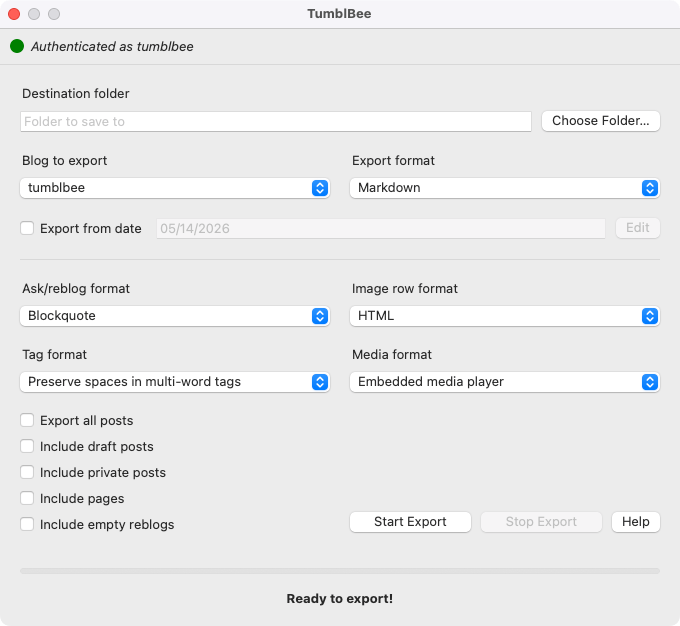
Destination folder - The destination folder for your export. TumblBee saves its exports to its own folder, tumblbee, which will be created in the folder that you select in the folder dialog. (If a folder by that name already exists, you’ll be asked if you want to overwrite it.)
Blog to export - The blog that you wish to export. By default, your main blog will be selected.
Export format - The file format for your export.
- Markdown - A versatile plain-text format, used by a number of websites, apps, and static site generators. Files end in the extension
.mdand use Markdown formatting (i.e.**bold**for bold text) wherever possible. - HTML - Semantic HTML styled with Pico CSS, suitable for local browsing or uploading to the web. Includes a post index (and page index, if pages are exported) and some additional styling, such as blog avatars in headers.
Export from date - Checking this box will open a date picker in a new window, allowing you to select a starting date for your export. This can be helpful if you just want a specific batch of recent posts, or if you want to take periodic backups (i.e. backing up new posts each month). Closing the date picker window or unchecking the box will disable date-based exports, and all posts will be exported.
Ask/reblog format - Choose how asks and reblogged posts should be rendered in exports. Blockquote format is default and is supported by nearly all platforms that support Markdown. Other formats are non-standard and may be useful for specific export targets.
- Blockquote - Asks and reblogs will use the standard Markdown blockquote format (
>). This option is always selected for HTML exports. - Callout - Asks and reblogs will be enclosed in callout blocks (
> [!quote]). - Admonition - Asks and reblogs will be enclosed in admonition blocks (
!!! quote).
Image row format - TumblBee does its best to preserve the original layout for rows containing multiple images. As standard Markdown rendering for images does not support complex layouts, TumblBee uses CSS to achieve the desired effect. You can choose how these rows are output in your posts.
- HTML - Rows will be rendered fully in HTML, with inline CSS for styling. This is the default option and should work in nearly all contexts where Markdown is supported. This option is always selected for HTML exports.
- Markdown with attributes - Rows will be rendered in Markdown, with Markdown attributes for styling. Markdown attributes are written in curly brackets (
{}) and include attributes that will be passed to the rendered HTML. Attributes are not part of standard Markdown, but they are supported by many applications.
Tag format - By default, all post tags will be exported exactly as written, with capitalization, punctuation, spaces, and special characters intact. If you’re exporting to a target that does not support multi-word tags (i.e. Obsidian), Hyphenate multi-word tags will apply certain normalizations to your tags, including stripping caps, removing special characters, and converting spaces to hyphens. For more info on how tags are processed with this setting, refer to the python-slugify documentation.
Media format - If a post contains an audio or video file that was uploaded directly to Tumblr, TumblBee will save the file to disk and add it to the post. You can choose how these media files are rendered in posts that contain them.
- Embedded media player - Media files will be displayed in an embedded HTML player, which can be played directly in the application or browser where supported.
- Link to media file - A link to the media file will be inserted into the post, in Markdown or HTML depending on your selected export format. Audio files containing cover art and video files containing a thumbnail will have the image included above the link.
A typical export will include all original public posts on the selected blog. You may also check the boxes to include drafts, private posts, and/or pages in your export. Draft and private posts in Markdown format will be identified as such in the YAML frontmatter, like so:
---
title: Example Draft Post
date: 2025-01-02 12:34:56
state: draft
draft: true
---
Draft and private posts in HTML format will be identified by a tooltip on the main post index.
Export all posts - Enabling this setting will disable TumblBee’s “originality” checks, exporting all posts matching your settings from the selected blog. You will be prompted to confirm your selection before proceeding. For more info, refer to the FAQ.
Running an Export
Once you’ve configured all of your settings, click the Start Export button to begin the export process. The progress bar will show the current progress against the total number of posts on your blog. You can stop the export at any time by clicking Stop Export.
If an export is stopped for any reason before its run is finished, the export’s progress will be saved to disk. This can be helpful if you have a lot of content to export, since you may be rate limited by Tumblr before your run finishes. In this case, you can resume your export once the rate limit has elapsed.
NOTE
If you’re finding yourself hitting Tumblr’s API limits often, you can request that the rate limit be removed from your application. This is a manual process, so you’ll need to email Tumblr staff and wait for a response. You can make a request by clicking the Request rate limit removal link for your application on the OAuth apps page. An email template will open with the key fields filled in for you.
For more on Tumblr’s rate limits, refer to the rate limits section of their API documentation.
To resume an unfinished export, select the same destination folder when starting a new export. If an export data file is found, you’ll be asked if you wish to resume the previous export. Clicking Yes will restore the original export’s settings and resume the export. Clicking No will discard the previous export and overwrite any files in the selected folder.
Happy exporting! 🐝